> For the complete documentation index, see [llms.txt](https://docs.caf.io/llms.txt). Markdown versions of documentation pages are available by appending `.md` to page URLs; this page is available as [Markdown](https://docs.caf.io/caf-docs/user-guide/organizations/sso-configurations/google.md).
# Google Workspace (SAML)
Configure SSO with Google Workspace using SAML protocol.
This guide explains how to configure SSO integration between Organizations and Google Workspace. After configuring Google, return to the [Organizations SSO Configuration Guide](/caf-docs/user-guide/organizations/sso-configurations.md) to complete the setup.
{% hint style="info" %}
**Before you begin:** Open **Authentication** → **SSO** in Organizations and copy the **Entity ID** and **ACS URL** as described in [Step 2 of the SSO Configuration Guide](/caf-docs/user-guide/organizations/sso-configurations.md#step-2-enable-sso-and-configure-the-provider).
{% endhint %}
***
## Prerequisites
* Administrator access to Google Workspace
* Super Admin access to Organizations
* Verified corporate email domain in Google Workspace
***
## SAML Configuration
### Create SAML Application in Google Workspace
1. Access the [Google Admin Console](https://admin.google.com)
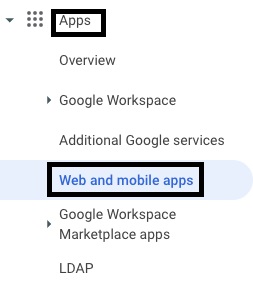
2. Navigate to **Apps** → **Web and mobile apps**
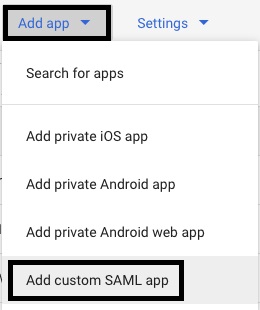
3. Click **Add app** → **Add custom SAML app**
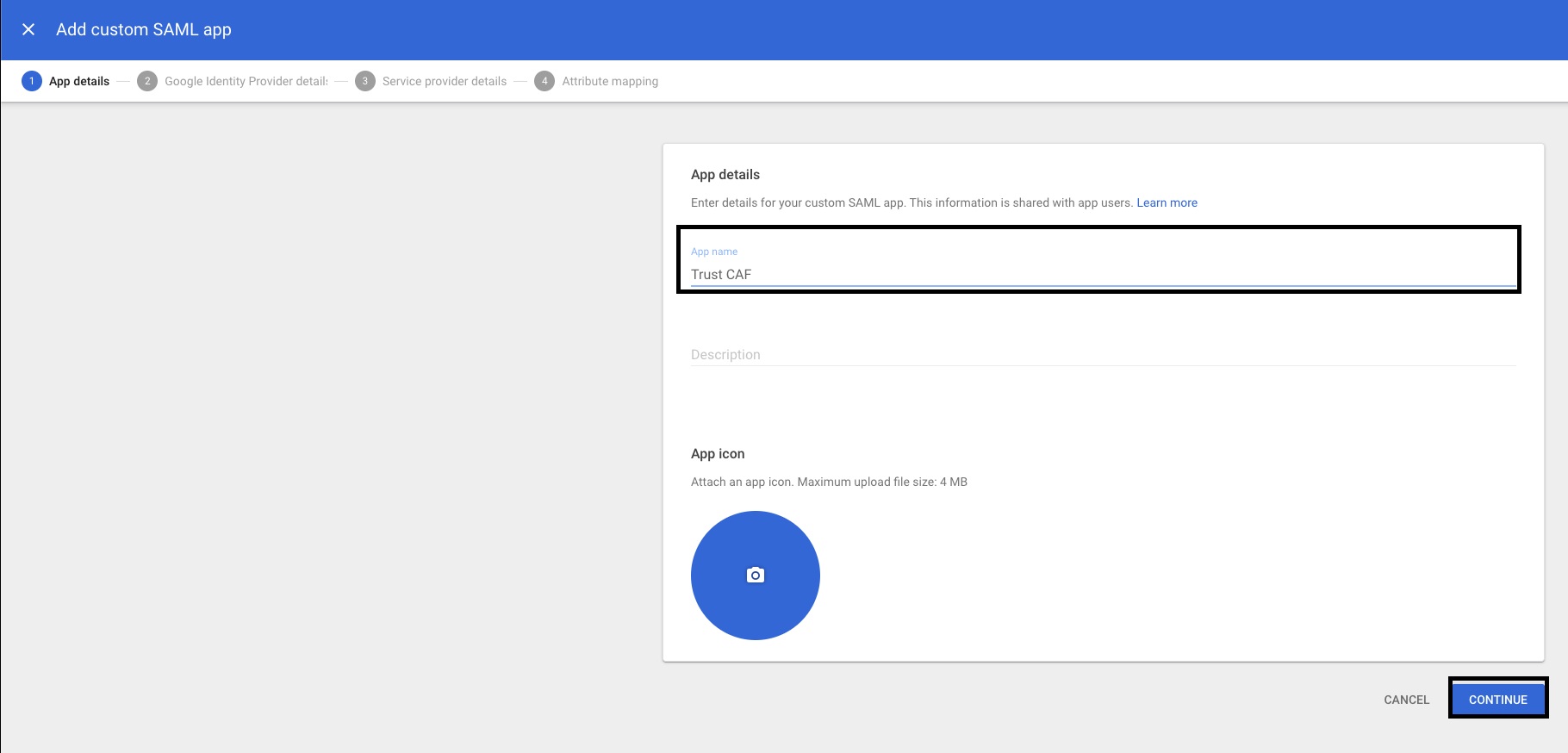
4. Configure the **App name** (e.g., "Certta")
5. Optionally add an app icon and description
6. Click **Continue**
### Download Google IdP Information
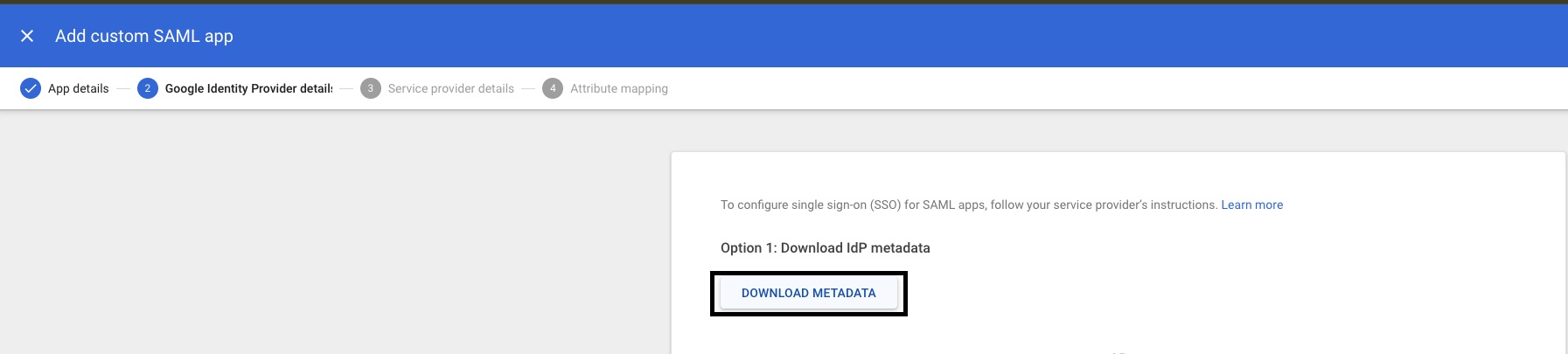
1. On the **Google Identity Provider details** page
2. Click **Download Metadata** to save the metadata XML file
{% hint style="info" %}
Note: Keep this metadata file safe. You'll need to either host it publicly or use Google's metadata endpoint URL in Organizations.
{% endhint %}
3. Click **Continue**
***
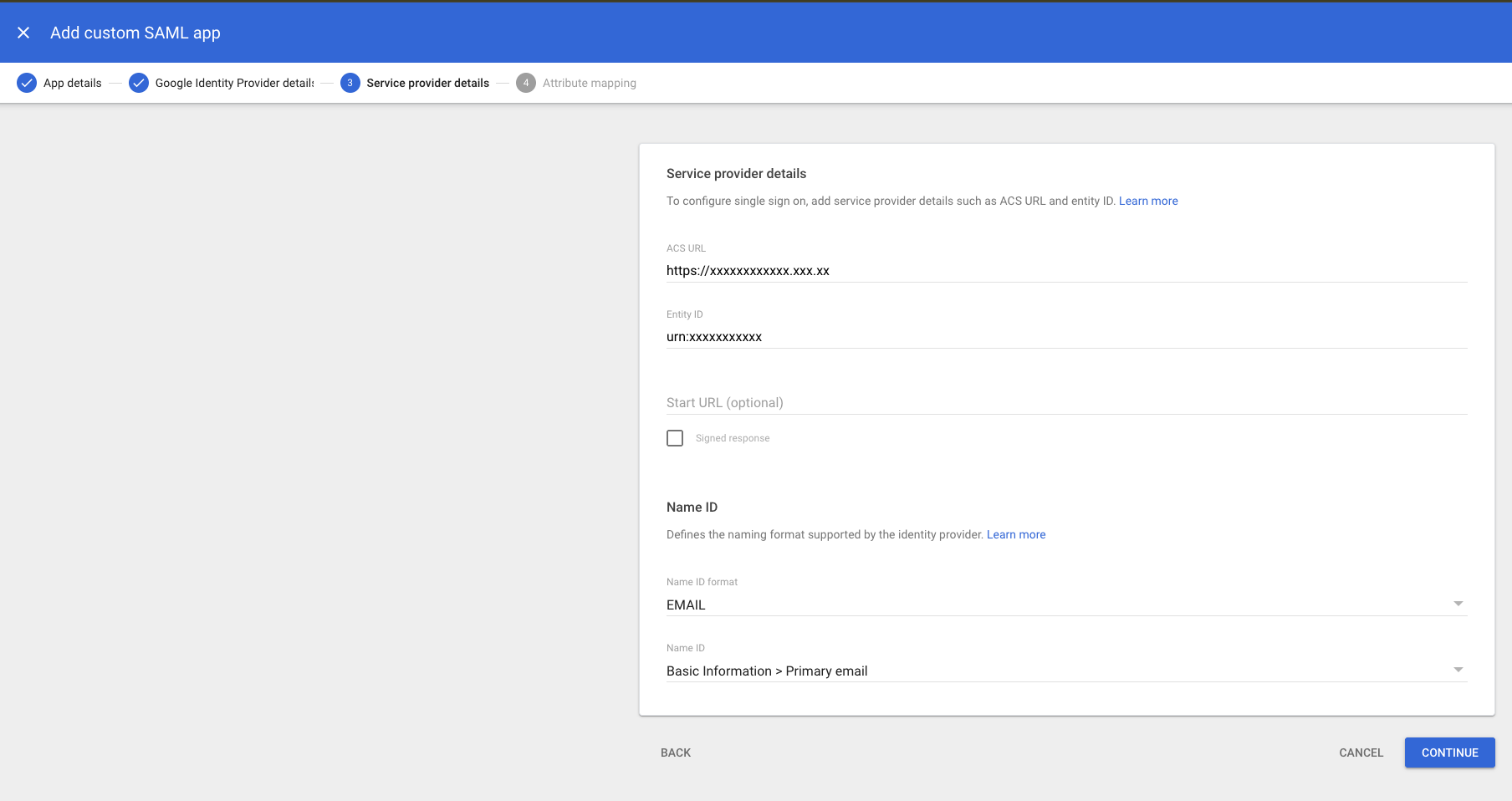
### Configure Service Provider Details
Configure the following fields:
| Google Field | Value |
| ------------------- | ------------------------------------------------- |
| **ACS URL** | Paste the **ACS URL** copied from Organizations |
| **Entity ID** | Paste the **Entity ID** copied from Organizations |
| **Start URL** | Leave blank (optional) |
| **Signed response** | Leave unchecked |
| **Name ID format** | EMAIL |
| **Name ID** | Basic Information > Primary email |
Click **Continue**
***
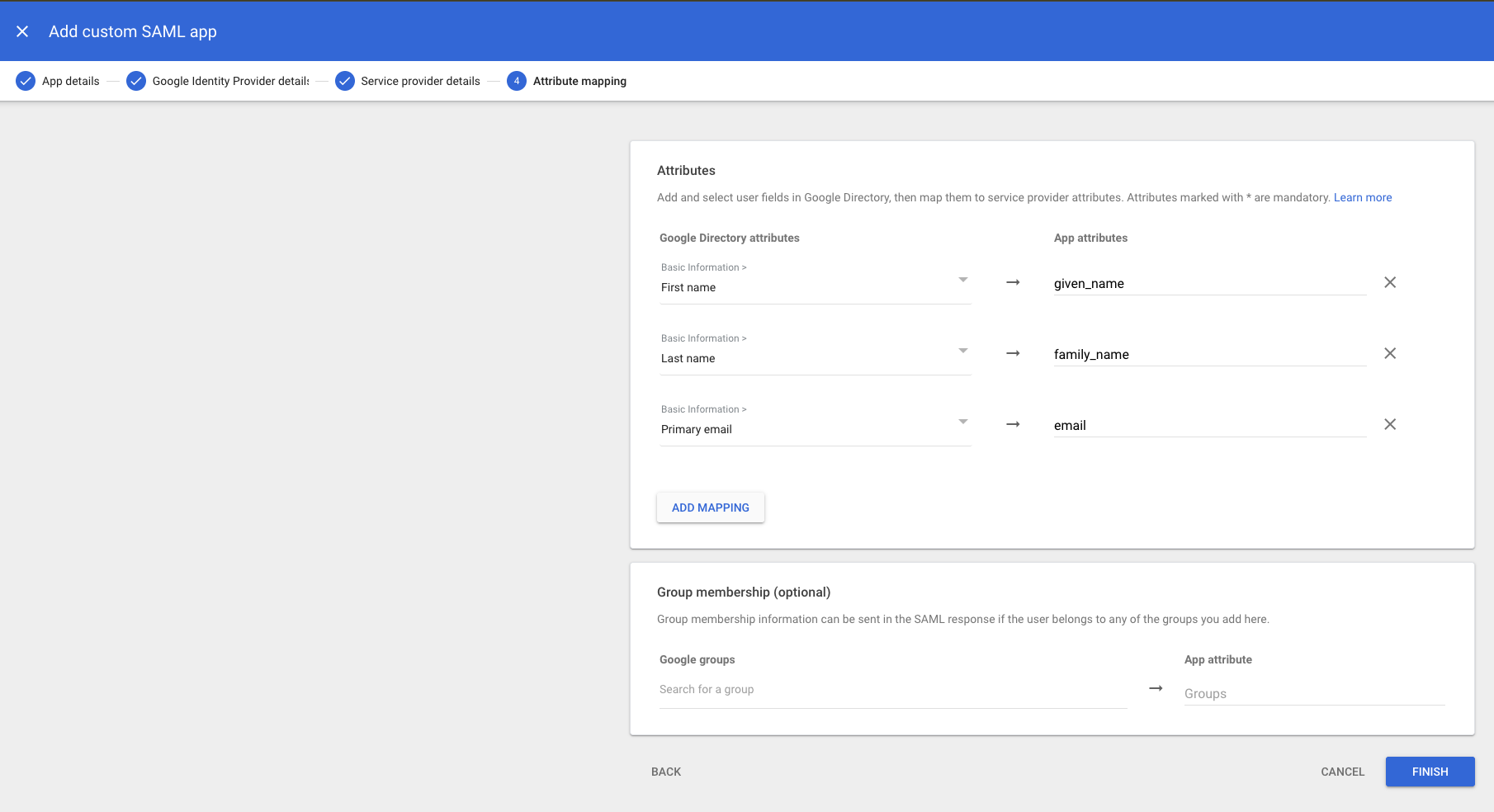
### Configure Attribute Mapping
Map Google user attributes to SAML attributes that Organizations expects:
Click **Add mapping** for each attribute:
| Google Directory attributes | App attributes |
| --------------------------- | -------------- |
| First name | `given_name` |
| Last name | `family_name` |
| Primary email | `email` |
{% hint style="info" %}
**Note:** The `name` attribute can use **Primary email** as a fallback, or you can create a custom mapping that combines first and last name if needed.
{% endhint %}
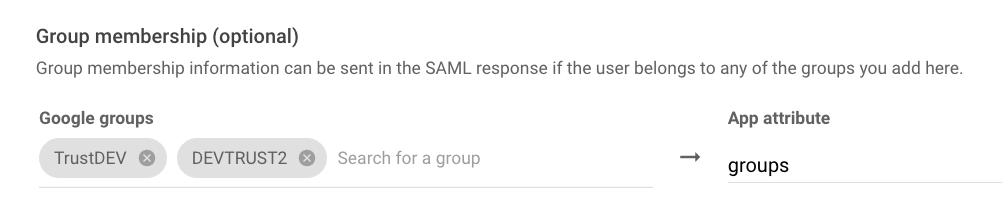
### Configure Group Claim (Optional)
If you use **Group assignment rules** based on IdP groups:
1. In Group membership
2. Add Google groups
3. In **App attributes**, enter `groups`
{% hint style="warning" %}
**Important:** Google can send either group email addresses (for example, `admins@company.com`) or group names (for example, `Admins`) in the groups claim, depending on your SAML app configuration. Map the corresponding values in **Group assignment rules**.
Only groups that the user is a direct member of are included. Nested group memberships may not be sent depending on your Google Workspace configuration.
{% endhint %}
4. Click **Finish**
***
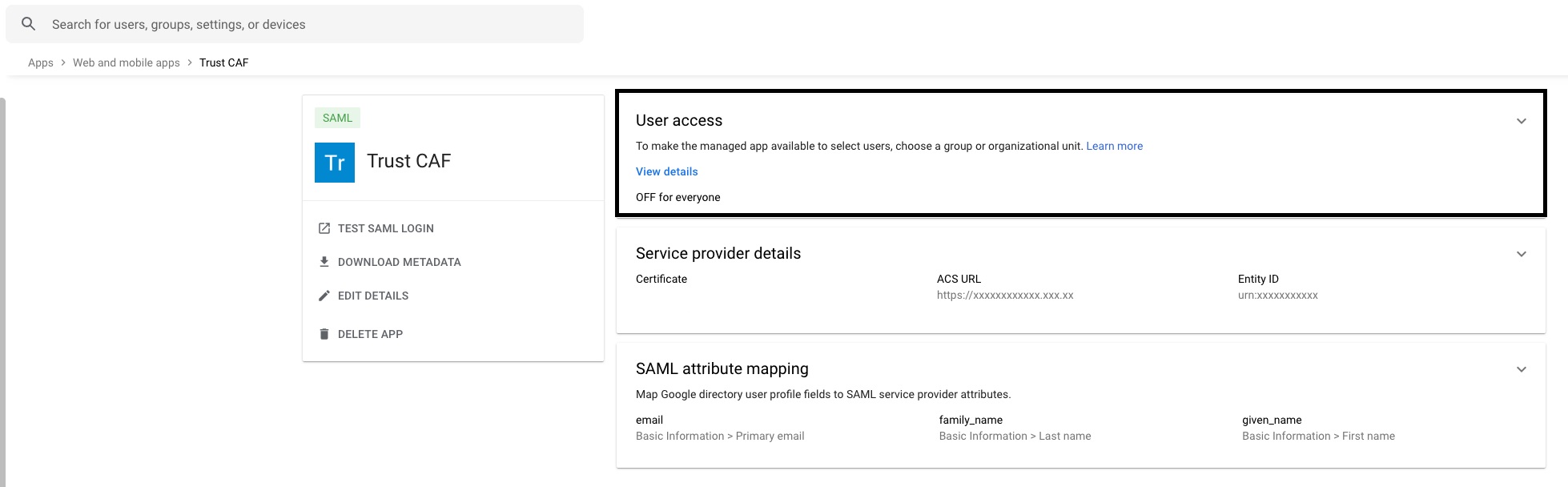
### Enable the Application for Users
1. In the app details page, click **User access**
2. Select **ON for everyone** or choose specific organizational units
3. Click **Save**
***
### Host Metadata URL
1. Download the metadata XML file from the Google Identity Provider details page
2. Host it on a publicly accessible URL (e.g., your web server or cloud storage)
3. Use that URL as the Metadata URL in Organizations
{% hint style="warning" %}
**Important:** The metadata URL must be publicly accessible for Organizations to retrieve the configuration.
{% endhint %}
***
## Configure in Organizations
After configuring Google Workspace, return to the [Organizations SSO Configuration Guide](/caf-docs/user-guide/organizations/sso-configurations.md#step-2-enable-sso-and-configure-the-provider) and configure:
| Organizations field | Value |
| -------------------- | ----------------------------------- |
| **Protocol** | SAML 2.0 |
| **Metadata XML URL** | Paste your hosted metadata file URL |
On the **Attribute mapping** tab:
| Organizations attribute | Claim value |
| ----------------------- | ------------------------------------------- |
| **Email** | `email` |
| **Full name** | `email` (or custom attribute if configured) |
| **First name** | `given_name` |
| **Last name** | `family_name` |
| **Groups** (optional) | `groups` |
***
## Next Steps
After configuring Google Workspace, return to the [Organizations SSO Configuration Guide](/caf-docs/user-guide/organizations/sso-configurations.md) to:
1. [Configure attribute mapping](/caf-docs/user-guide/organizations/sso-configurations.md#step-3-configure-attribute-mapping)
2. [Configure group assignment rules](/caf-docs/user-guide/organizations/sso-configurations.md#step-4-configure-group-assignment-rules)
3. [Save and test](/caf-docs/user-guide/organizations/sso-configurations.md#step-5-save-and-test)
***
## Troubleshooting
| Problem | Probable Cause | Solution |
| --------------------------- | ------------------------------------- | ---------------------------------------------------------------------------- |
| ACS URL error | URI does not match | Verify that the ACS URL in Google matches the ACS URL from Organizations |
| User not authorized | App not enabled for user | Enable the app for all users or specific organizational units in User Access |
| Invalid SAML response | Attribute mapping incorrect | Verify attribute mappings in Google Admin Console |
| Certificate error | Certificate expired or invalid | Download new metadata from Google and re-host it |
| Metadata URL not accessible | Metadata file not publicly accessible | Ensure the metadata file is hosted on a publicly accessible URL |
| Domain restriction | User domain not verified | Verify the corporate domain in Google Workspace |
| Name ID error | Name ID format incorrect | Ensure Name ID format is set to EMAIL and mapped to Primary email |
***
## References
* [Google Workspace - SAML SSO](https://support.google.com/a/answer/6087519)
* [Google Workspace - Custom SAML Applications](https://support.google.com/a/answer/6087519)
---
# Agent Instructions
This documentation is published with GitBook. GitBook is the documentation platform designed so that both humans and AI agents can read, navigate, and reason over technical content effectively. Learn more at gitbook.com.
## Querying This Documentation
If you need additional information that is not directly available in this page, you can query the documentation dynamically by asking a question.
Perform an HTTP GET request on the current page URL with the `ask` query parameter, and the optional `goal` query parameter:
```
GET https://docs.caf.io/caf-docs/user-guide/organizations/sso-configurations/google.md?ask=&goal=
```
`ask` is the immediate question: it should be specific, self-contained, and written in natural language.
`goal` is optional and describes the broader end goal you are ultimately trying to accomplish on behalf of the user. GitBook uses it to tailor the answer towards what is most useful for that goal.
The response will contain a direct answer to the question and relevant excerpts and sources from the documentation.
Use this mechanism when the answer is not explicitly present in the current page, you need clarification or additional context, or you want to retrieve related documentation sections.